Workflows
Organise and track your listings with pipeline, grid, and calendar views.
Workflows are how you manage products in Shopfront. Every batch of listings — whether uploaded from photos or imported from a marketplace — lives inside a workflow. From there, you track each item through review, listing, sale, and completion.
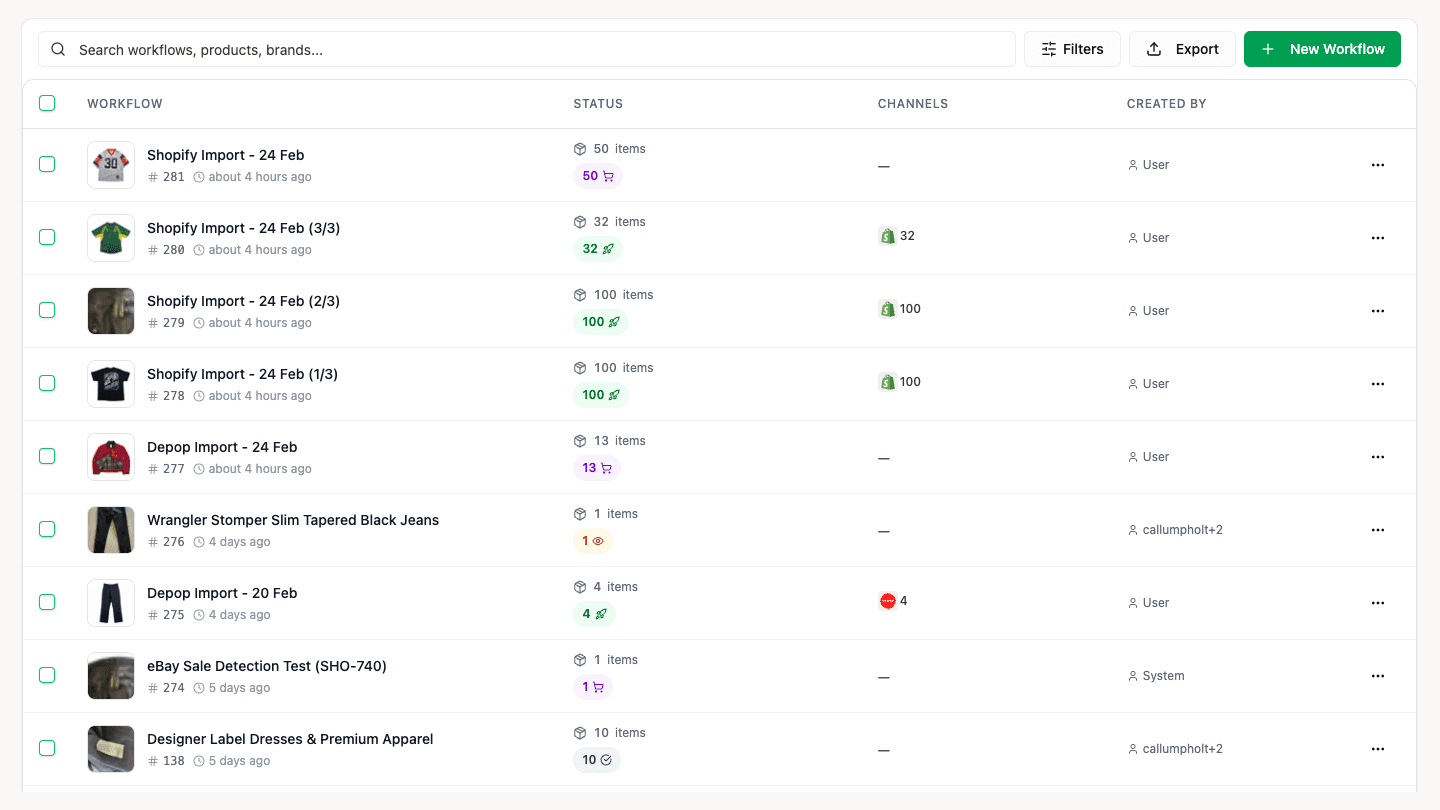
Click into any workflow to manage its products. Switch between views using the layout selector in the top-right corner.
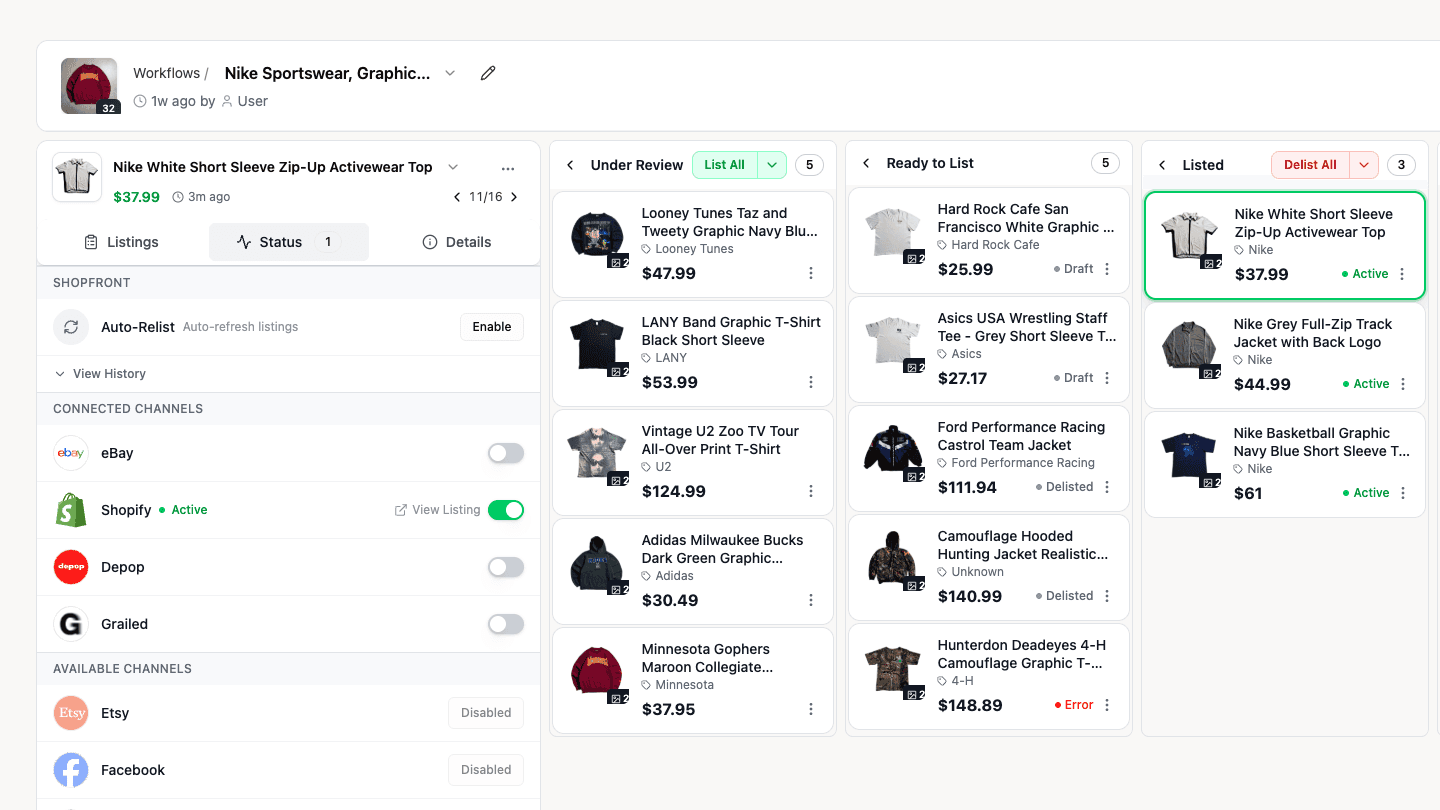
Pipeline View
A kanban-style board with four stages:
Under Review → Ready to List → Listed → Completed
Products move between stages automatically. List an item and it shifts to Listed. A sale is detected and it moves to Completed. You can also drag items between stages manually.
Grid View
Same four stages in a two-column layout. Gives you more vertical space and a denser view of your inventory.
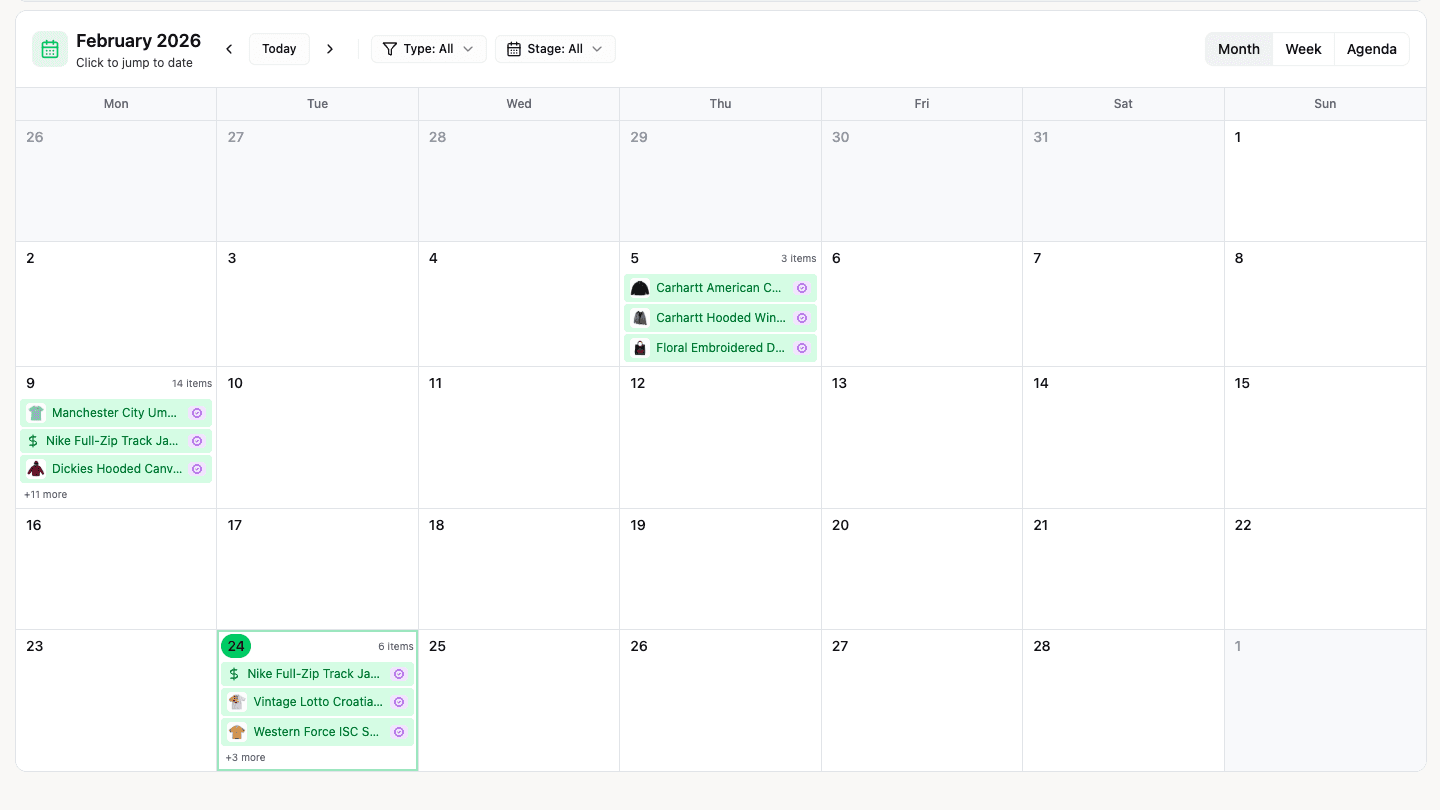
Calendar View
See your workflow on a timeline with month, week, and agenda views. Shows scheduled listings, upcoming relists, and sales — colour-coded by stage and filterable by channel.
Product Detail Panel
Click any item to open the detail panel. View and edit per-marketplace listing data, see connected channels with status indicators, manage scheduling and auto-relist settings, and view the full history of an item.
Bulk Operations
- Add Items — Upload photos or capture from camera. Add to an existing workflow or start a new one.
- Sort — By date, name, price, or position
- Default Channels — Set which marketplaces new items should list to
- Delist All / Export — Workflow-level actions from the header
Per-item actions include listing to specific channels, scheduling, auto-relisting, duplicating, and marking as sold.
Workflows update in real time. When a team member lists an item or a sale is detected, your board reflects the change immediately — no refresh needed.
What is Shopfront?
A multi-channel selling platform for eBay, Depop, Grailed, Shopify, and Vestiaire Collective. Upload photos, generate listings with AI, and sell everywhere from one dashboard.
AI Listing Generation
Upload photos and generate marketplace-ready listings with AI. Titles, descriptions, categories, and attributes — across all your channels at once.